
Skip to content


DEMO DOZEN | PRESENTER HUB 

Everything you need to
shine on the day.

Welcome to Demo Dozen. This page brings together your prep walkthrough, recording best practices, what support to expect during the live session and answers to the questions presenters ask most.

demo-dozen-next-session-feb18

STEP 1 | WATCH

Your prep call walkthrough

A run through of the Riverside platform: how to join the studio, check your camera and mic, share your screen and what you will see while you are live.

Watch it before your live session so the platform feels familiar on the day.

No video selected

Select a video type in the sidebar.

STEP 2 | SET UP

Recording best practices

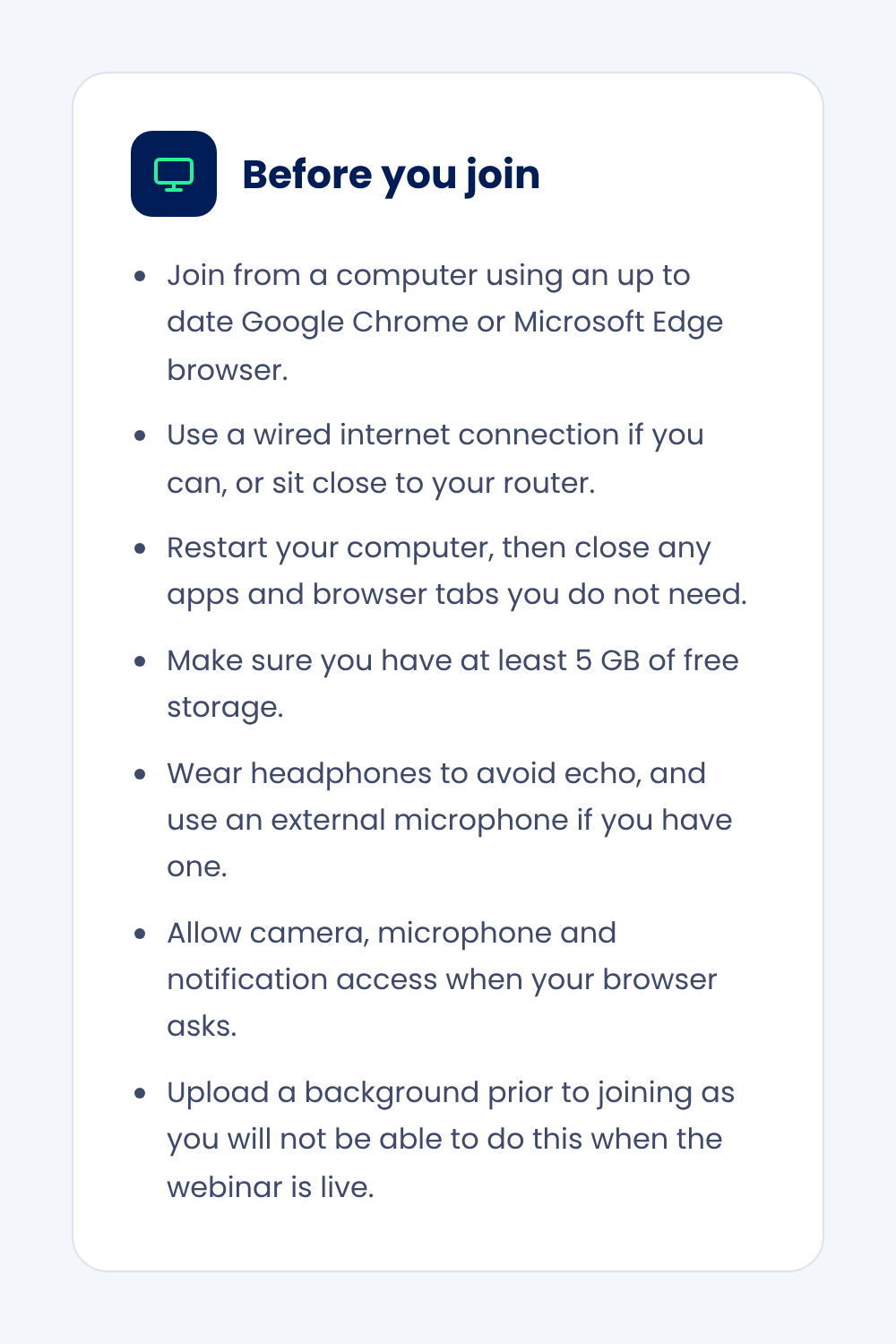
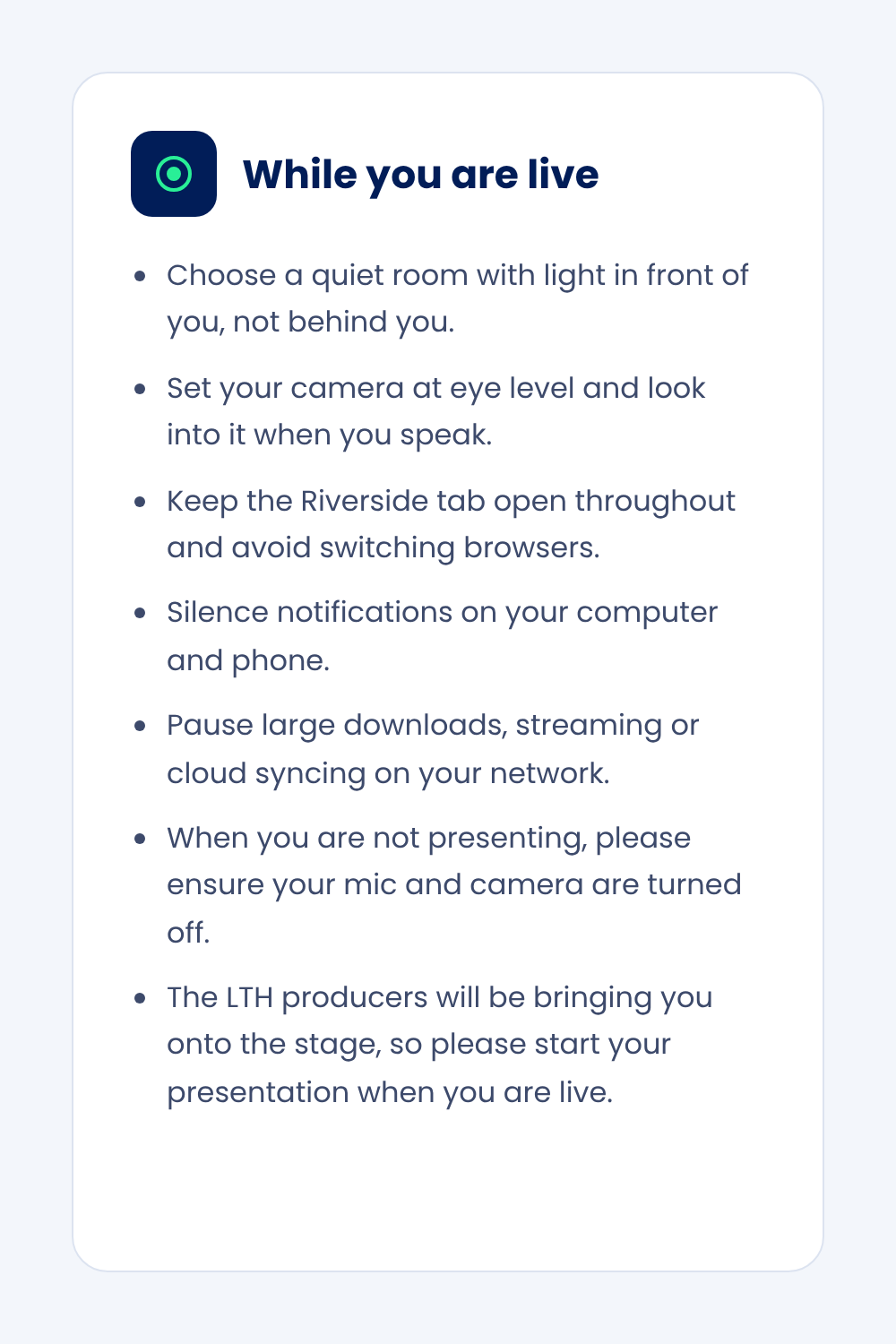
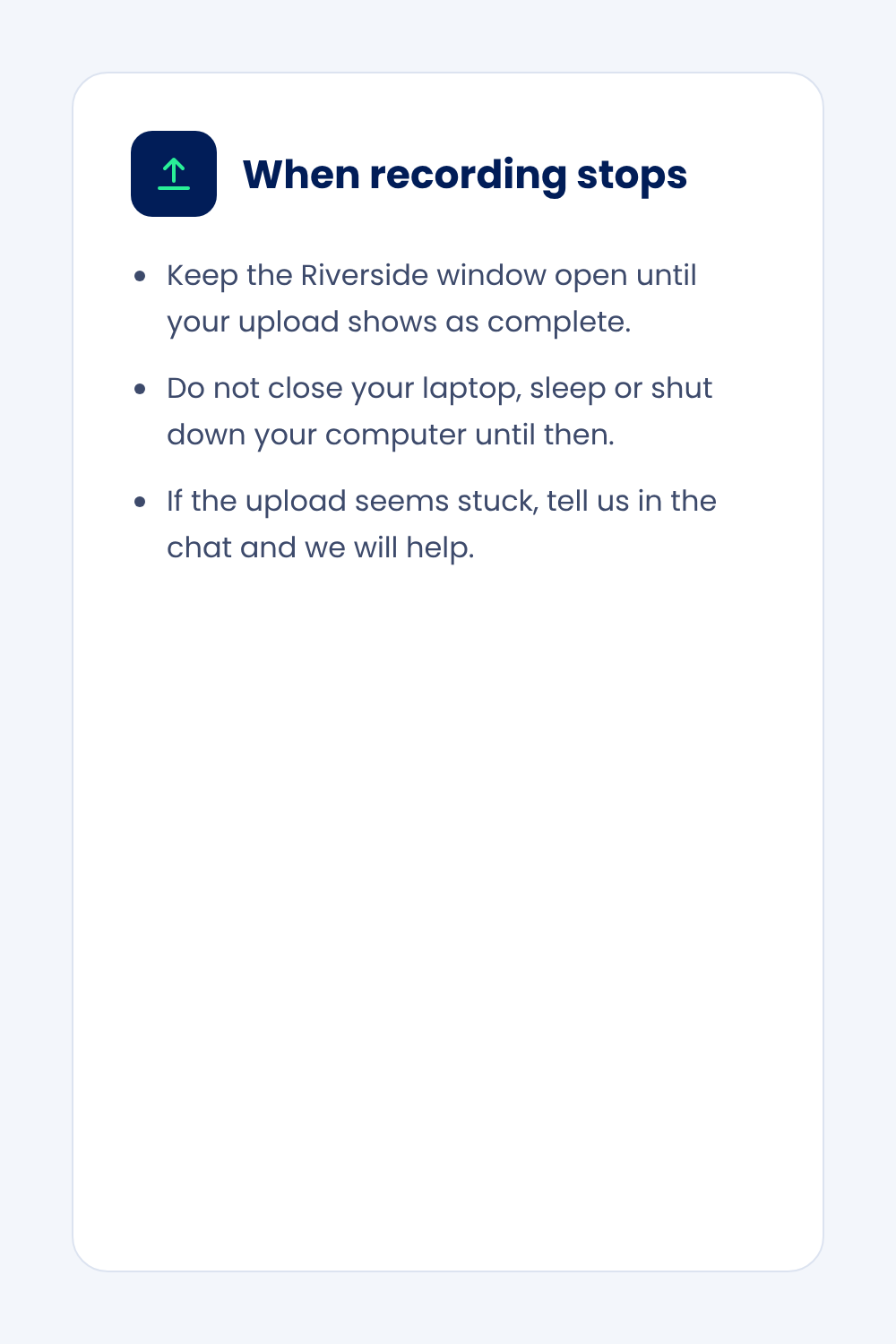
Demo Dozen is hosted on Riverside, which records each participant locally for the best possible quality. A few simple checks make a big difference.
Full guidance: Riverside guest checklist and tips: recording on a computer

00
Days
00
Hours
00
Minutes
00
Seconds

Event Speakers

The headline and subheader tells us what you're offering, and the form header closes the deal. Over here you can explain why your offer is so great it's worth filling out a form for.

riverside-before-you-join_1
riverside-while-you-are-live2
riverside-when-recording-stops_1

STEP 3 | PRESENT

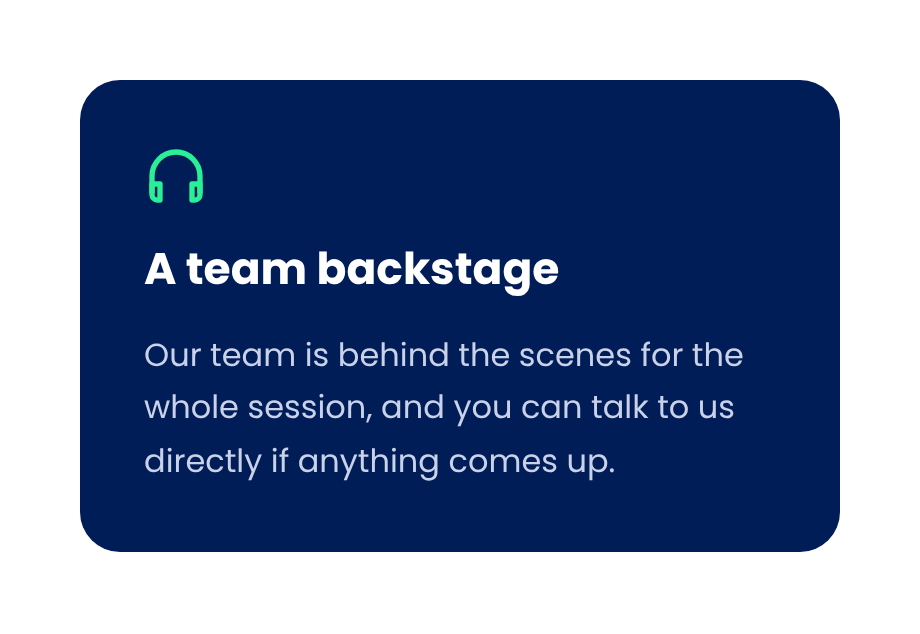
You are never on your own

There will always be help behind the scenes during the webinar, so you can focus on your demo.

step3-team-backstage
step3-chat-support.
step3-time-checks
step3-opt-in-registration-list-full-width

FINISH STRONG

Your closing slide

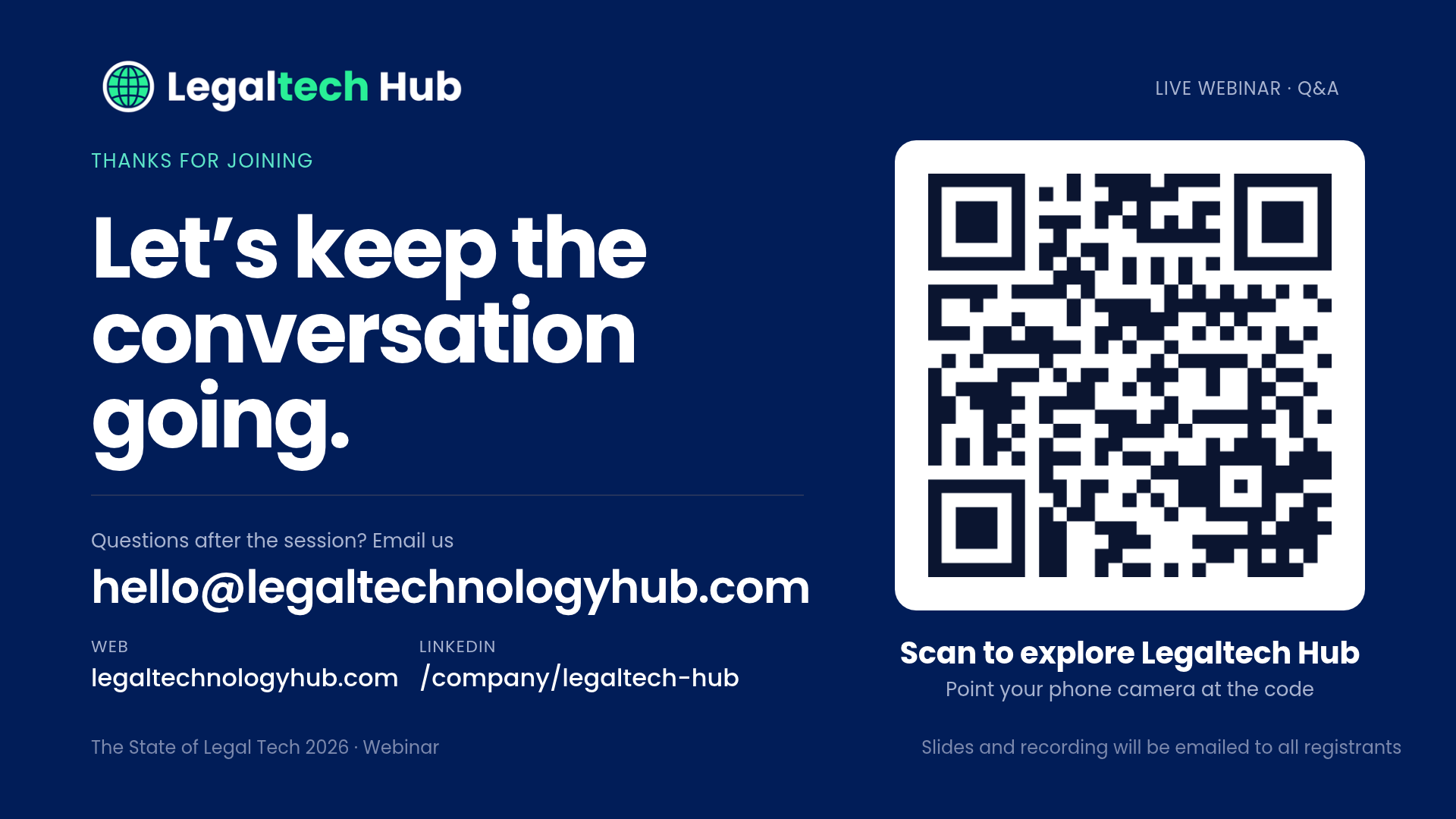
End your demo on a contact slide so attendees know exactly how to reach you. Here is an example of the layout we recommend.

  • A clear thank you and invitation to keep talking
  • Your contact email for follow up questions
  • Your website and LinkedIn page
  • A QR code linking to your product or a demo booking page
Contact _ Q&A

GOOD TO KNOW

Frequently Asked Questions

How long is my presentation slot?

Each presenter has 15 minutes. We will send time checks behind the scenes and also in the chat so you always know where you are. However please leave a few minutes to at the end to answer the Q&A


Do I need to download anything to join?
No. Riverside runs in your browser. Join from a computer using an up to date Google Chrome or Microsoft Edge browser using the link we send you.
Can I share my screen for a live demo?
Yes. You can share your screen directly in Riverside. We walk through exactly how in the prep video, and we can practise it together on a call if you would like.
When should I join on the day?
Please join the studio 10 minutes before the session starts so we can check your audio and video.
What happens if my connection drops?
Rejoin using the same link and please notify us asap if you are having any problems with this. Our team is behind the scenes throughout and will help you get back on as quickly as possible.
What do I receive after the webinar?
You will receive the opt in registration list and a copy of the full recording (individual recordings will be sent to you on request) so you can follow up with attendees who have agreed to hear from you.
Should I end with a contact slide?
Yes, we recommend it. See the closing slide example above for what to include.
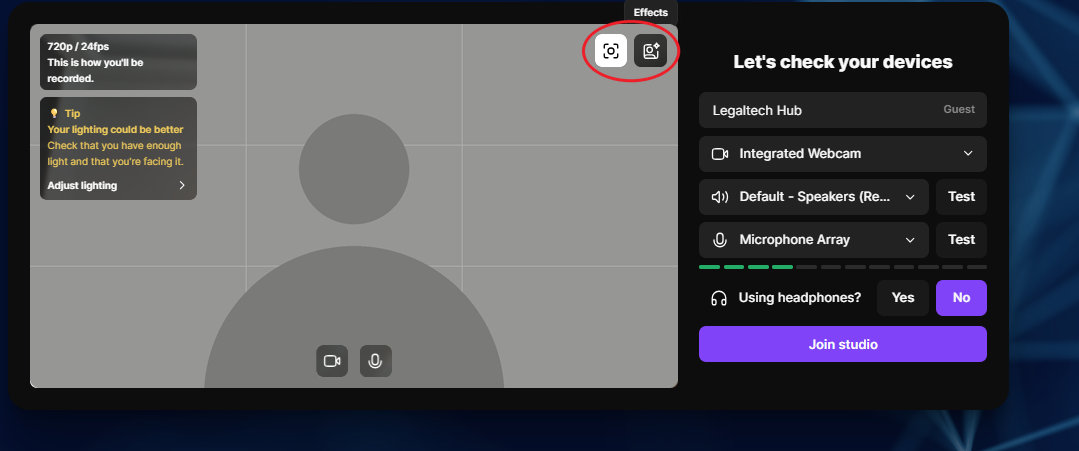
Can I add a background to my video?

Yes you can but please note this needs to be done before you join the webinar.

When you join you will see the buttons to change the background in the top right hand corner
device-check-placeholder-circled


NEED ANYTHING ELSE?

Book a call with us

Want to talk through your demo, your slides or anything else that will help your presentation? Pick a time that suits you and we will go over it together.

Looking ahead?

See upcoming Demo Dozen dates and explore other ways to present with Legaltech Hub.